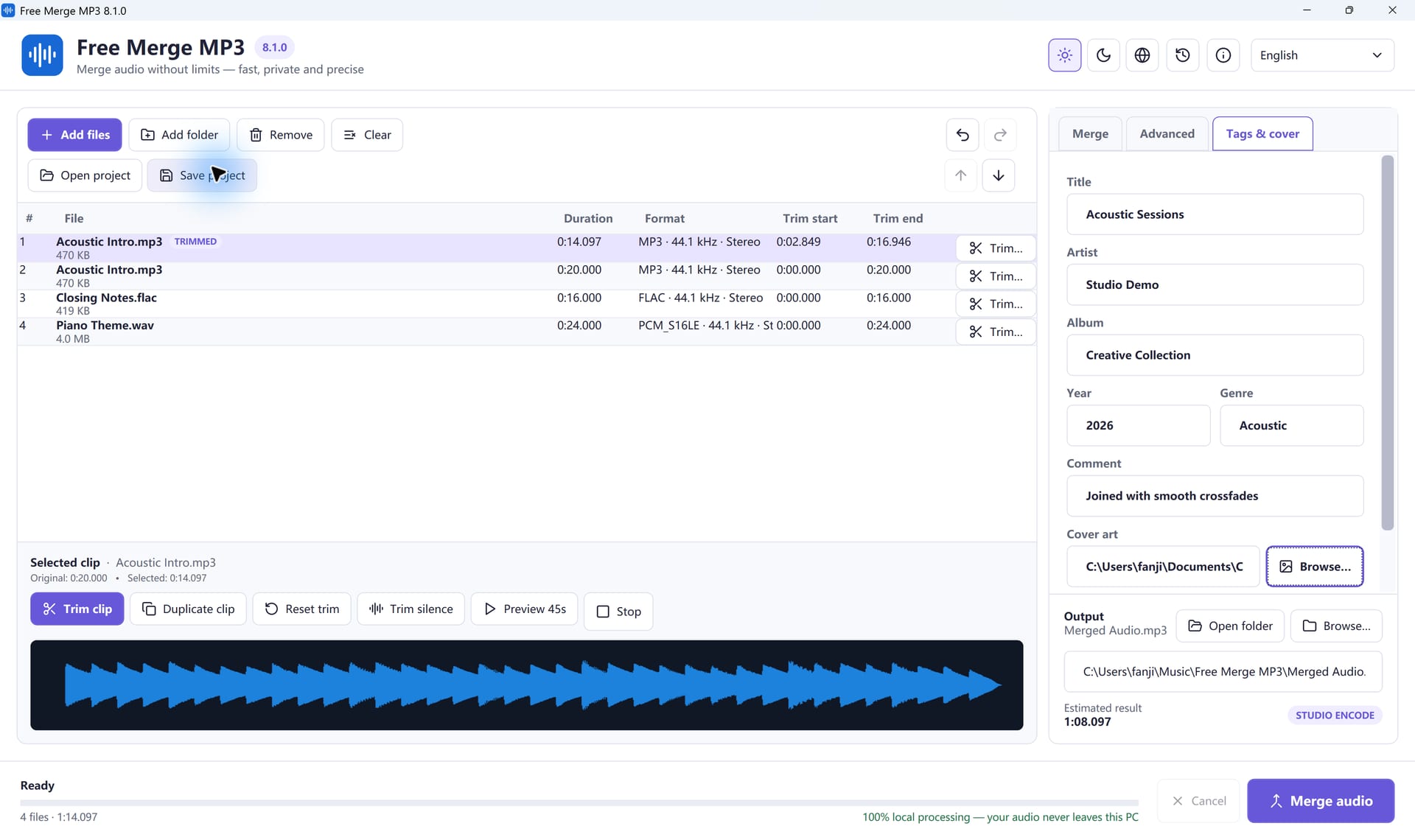
Merging MP3 files creates one audio stream, but a professional result needs more than sound. Without a useful title, artist, album, year, genre, cover image, and chapter reference, the file may appear as “Unknown” in a player and become difficult to organize later.
Free Merge MP3 can write global output metadata, attach cover art to supported formats, and create a companion CUE chapter sheet. This guide explains what each item does, which formats support it, and how to verify the result instead of assuming every player will display it the same way.
What MP3 metadata can store
Free Merge MP3 exposes the fields most people need:
- Title: the episode, book, session, mix, or compilation title.
- Artist: performer, host, narrator, speaker, or organization.
- Album: series, show, collection, or project.
- Year: release or recording year.
- Genre: audiobook, podcast, interview, classical, lecture, and so on.
- Comment: a short production note that is safe to share.
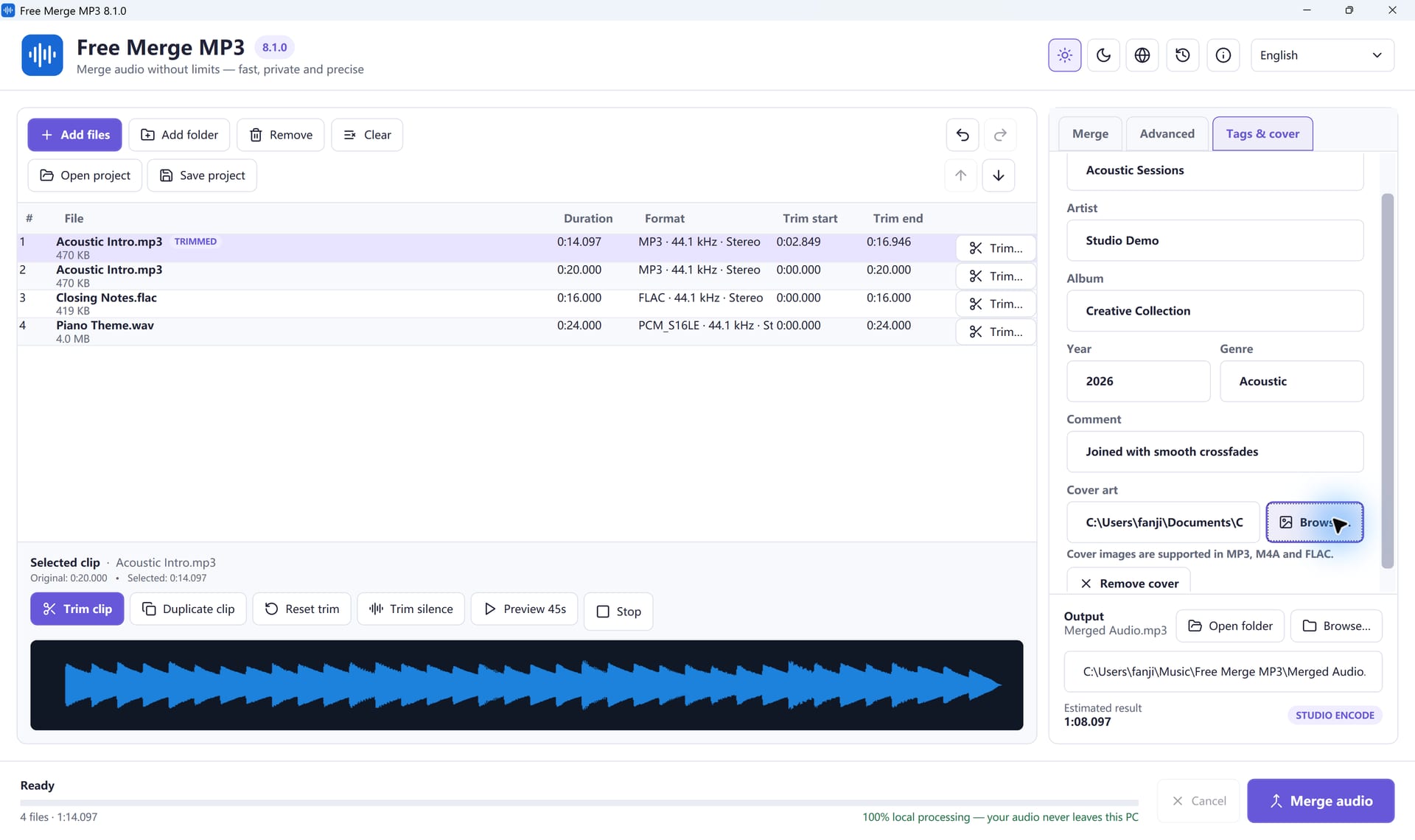
- Cover art: a square image displayed by many media players.
The program writes the values you enter for the final output. Blank global fields remain blank rather than silently inheriting private tags from the first source file. That behavior is useful when input clips come from different people or devices.
Plan metadata before the merge
Decide whether the merged file represents one work or a temporary production asset. A public podcast episode may need a polished title, show name, date, and cover. An internal interview archive may need a neutral title and no cover. A family recording may contain personal names that should not be added if the file will be posted publicly.
Keep fields concise. Media players truncate long values, and some devices cache old tags. Use a consistent naming policy across a series.
Add cover art correctly
Cover art is available for MP3, M4A, and FLAC output. The controls are disabled for WAV, OGG, and Opus because those outputs are not supported by this workflow. Use a square JPEG or PNG you own or have permission to distribute. A resolution around 1000×1000 to 2000×2000 is usually detailed enough without being unnecessarily large.
Choose the cover in Tags & cover. If the file is missing when the merge starts, the job fails rather than producing a misleading result. After export, open the audio in at least two players. Some players display embedded artwork immediately; others retain a cached thumbnail until the library is refreshed.
Create a CUE chapter sheet
A CUE sheet is a plain-text index that records where tracks or chapters begin in a longer audio file. Enable Create a CUE chapter sheet before merging. Free Merge MP3 writes one marker for each input clip and adjusts the times to account for trim ranges, inserted gaps, and crossfades.
The CUE file is saved beside the audio with the same base name. Keep the two files together. A CUE sheet does not automatically create native chapters in every phone app, car stereo, or audiobook ecosystem. Support depends on the player. Even when playback software ignores it, the sheet remains a useful portable production log.
Why chapter times can differ from raw source durations
Suppose Chapter 1 is trimmed by two seconds, a half-second gap is inserted, and Chapter 2 is trimmed at both ends. Chapter 2 should not begin at the original duration of Chapter 1. Its marker must use the effective trimmed duration plus the gap. Crossfades work differently because two clips overlap, so the total timeline becomes shorter by the overlap duration.
Free Merge MP3 calculates markers from the assembled timeline. That is more reliable than adding original durations in a spreadsheet after the fact.
Choose processing mode without losing metadata
Use Smart (recommended). When the inputs and requested output are compatible and no edit requires decoding, Smart can copy the audio streams. Metadata and supported cover art can still be attached to the output container. When audio properties differ or you request trims, fades, transitions, or normalization, Smart uses Studio processing.
Do not equate “lossless audio copy” with “identical whole file.” The output container, metadata blocks, cover image, file timestamps, and byte layout can change even when the encoded audio packets are copied. “No re-encoding” refers to the audio stream, not every byte of the complete file.
A complete advanced workflow
- Add the input clips and arrange them in final order.
- Trim and preview edges.
- Select Smart, Lossless Copy, or Studio based on the job.
- Choose output format, bitrate where applicable, sample rate, and channels.
- Configure direct join, gap, or crossfade.
- Apply loudness normalization or fades only when needed.
- Open Tags & cover and enter the final metadata.
- Select a supported cover image.
- Enable the CUE chapter sheet.
- Choose the output path and merge.
Verify the result
- Play the complete file and confirm all joins.
- Open file properties or a trusted media inspector and read the tags.
- Check the cover in two different players.
- Open the CUE sheet in a text editor; confirm clip order and increasing marker times.
- Move a copy of the audio and CUE file to a test folder to ensure no project-only dependency is required.
- Keep source files and the
.fmp3projproject until the output is backed up.
Frequently asked questions
Can I use a different cover for every source track?
The merged output represents one work and uses one global cover image. Keep separate files if each track must retain independent artwork.
Does WAV support the cover image?
Not in this application workflow. Choose MP3, M4A, or FLAC when an embedded cover is required.
Will a CUE sheet show chapters on every phone?
No. CUE support varies. Treat it as a portable companion index and verify the target player before distribution.
Can I reuse the setup for another episode or volume?
Save a project, then use a copy as the starting point. Verify every source path, trim range, title, and cover before exporting the new work.
For the basic joining workflow, see How to Merge MP3 Files on Windows 11. To build a tagged, illustrated, chapter-indexed output now, download Free Merge MP3.