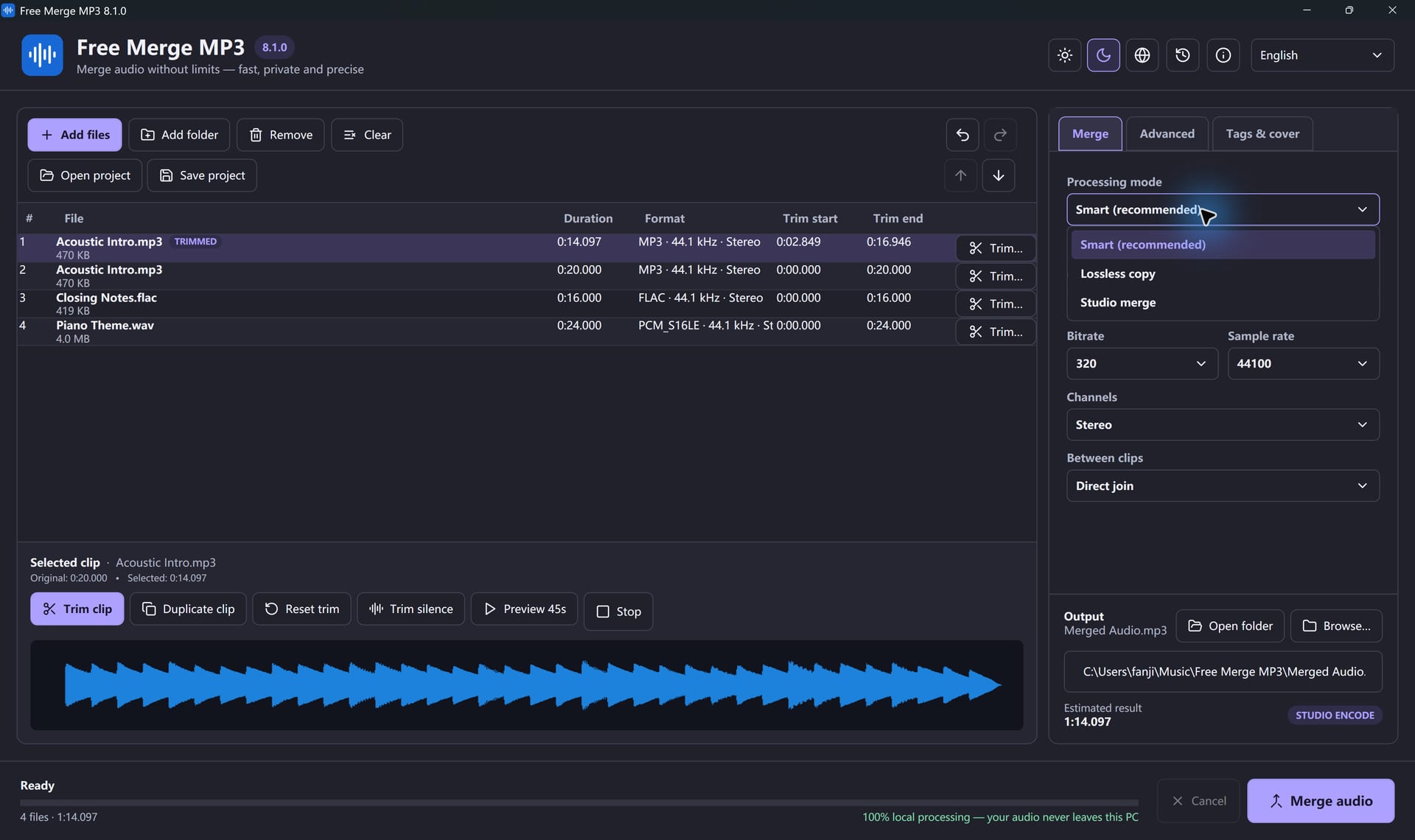
“Merge MP3 without losing quality” can mean two different things: joining already compatible MP3 streams without encoding them again, or combining mixed audio files while minimizing the loss from one necessary encode. The correct method depends on the source files.
When a lossless MP3 join is possible
MP3 is already a lossy format, but joining does not have to create another generation of loss. A stream-copy join can copy compressed audio frames into a new container without decoding and re-encoding them. It works best when every file uses compatible codec settings, sample rate, channel layout, and timing.
“No re-encoding” does not mean the original recording was lossless; it means the existing MP3 data is not compressed again during the join.
When re-encoding is necessary
You normally need one encode when the inputs mix MP3, WAV, WMA, OGG, or other formats; when sample rates or channel layouts differ; or when you add fades, volume normalization, filters, or other edits. In that case, work from the highest-quality originals, make all edits in one project, and export once.
Option 1: a simple desktop merge
Free Merge MP3 provides a visual file list for arranging multiple tracks and choosing a common output. It is suitable when convenience and offline processing matter more than command-line control.
- Copy the source files to a working folder and retain the originals.
- Add all tracks and arrange them in playback order.
- Choose the final format based on the target device.
- If conversion is required, choose a sensible bitrate close to the source quality.
- Merge once, then check the boundaries, total duration, and metadata.
Option 2: FFmpeg stream copy for compatible files
FFmpeg’s concat demuxer can read a list of files in sequence. The official project recommends it for compatible streams when you want to avoid a re-encode. A typical Windows workflow uses a files.txt list and this command:
ffmpeg -f concat -safe 0 -i files.txt -c copy merged.mp3
If it fails, do not force incompatible streams together. Convert the sources to a consistent intermediate format or use one controlled final encode.
Choose the right output format
- MP3: widest compatibility; good for phones, cars, and sharing.
- WAV: uncompressed and large; useful as an editing master.
- FLAC: lossless and smaller than WAV, but not supported by every older device.
- M4A/AAC: efficient for many modern devices, though compatibility depends on the player.
If the sources are MP3, exporting to FLAC will not restore information that MP3 encoding already removed. It only prevents another lossy encode from that point onward.
Practical quality checklist
- Keep the source files unchanged.
- Check sample rate, channels, and bitrate before choosing stream copy.
- Normalize or fade only when the project actually needs it.
- Perform all required edits before the final export.
- Listen with headphones at every join and compare with the originals.
- Retain a WAV or FLAC master for future revisions when possible.
Frequently asked questions
Can increasing the bitrate improve an existing MP3?
No. It creates a larger file but cannot reconstruct detail discarded by the earlier encode.
Why does a stream-copy join sometimes click?
Encoder delay, padding, damaged frames, or cuts away from natural waveform boundaries can create audible transitions. A short fade or controlled re-encode may sound better.
Should audiobook chapters be one file?
One file is easy to transfer, but chapter navigation may be worse. Test the result in the intended player and keep the separate chapters as a backup.
Can I combine different audio formats without conversion?
Usually no. Mixed formats must be decoded and encoded to one common output format.
Updated August 2026 for Windows 11 and Windows 10.