
Windows 11 can play MP3 files, but Windows Media Player does not provide a simple “join these tracks into one MP3” command. The practical choices are a dedicated desktop merger, a timeline editor, or FFmpeg. This guide explains all three and shows when each method preserves quality.
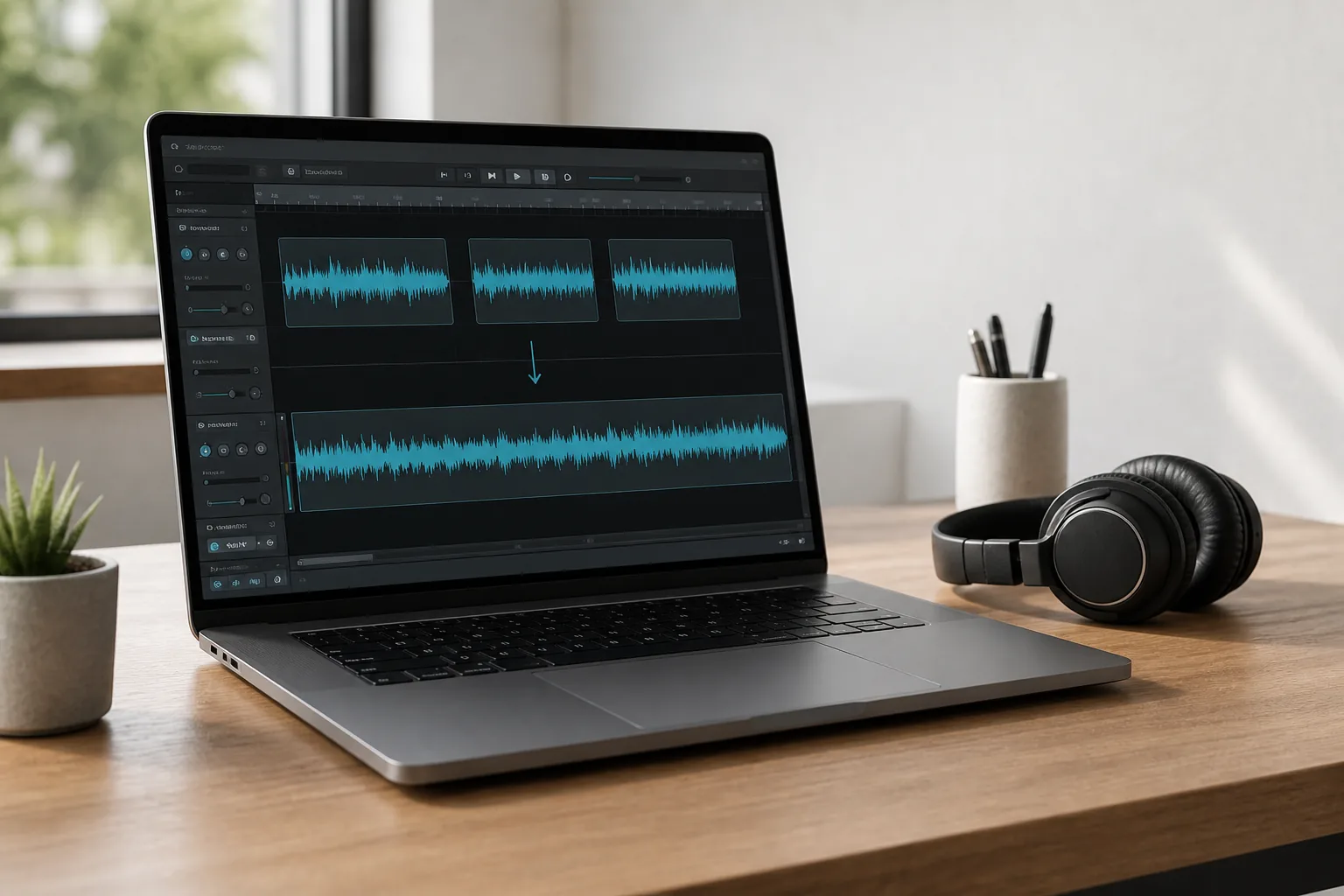
Quick answer: the easiest way to merge MP3 files
- Put the source MP3 files in a folder and rename them in the desired order, for example
01-intro.mp3,02-part-one.mp3. - Open Free Merge MP3 and add the files.
- Drag or move tracks into the correct order.
- Choose MP3 as the output format and select a quality setting appropriate for the sources.
- Select an output folder, start the merge, and listen at every join point.
Download Free Merge MP3 for Windows 11/10
Before merging: organize and check the source files
Make a copy of the originals. Use numbered filenames so the intended order is obvious, and play the beginning and end of every track. If one file is corrupted, has a much lower volume, or uses a different sample rate, fixing it before the merge produces a more predictable result.
For spoken-word chapters, consider whether one very large MP3 is actually convenient. A single file is easy to transfer, but chapter navigation and resume behavior depend on the player. Keep the individual files until you confirm the merged version works on your phone, car stereo, or audiobook app.
Method 1: use Free Merge MP3 on Windows 11
A dedicated desktop application is the most approachable choice when you want a single audio file without uploading private recordings to a web service.
- Add audio: use the Add Files button or drag source files into the list.
- Set the order: arrange the tracks from first to last. Numbered filenames make this easier.
- Choose output: select MP3 for broad compatibility, or another format if required by your workflow.
- Choose quality: when re-encoding is needed, avoid selecting a bitrate higher than the source and assuming it restores quality—it cannot recreate detail already discarded.
- Merge: choose a destination with enough free space and start processing.
- Verify: play several seconds before and after each boundary. Also confirm duration, tags, and file size.
Method 2: combine audio on a timeline with Clipchamp
Clipchamp is Microsoft’s video editor for Windows 11. Microsoft documents that MP3, WAV, and OGG are among its preferred audio input formats and that audio clips can be dragged to a timeline. This is useful when you need trimming, gaps, fades, or a voiceover. It is a video-focused workflow, however, so check the available export options before building a long audio-only project. See Microsoft’s Clipchamp audio guide.
Method 3: merge compatible MP3 files with FFmpeg
Advanced users can use FFmpeg’s concat demuxer. The official FFmpeg FAQ distinguishes the concat demuxer, which can avoid re-encoding when streams are compatible, from the concat filter, which is intended for workflows that re-encode.
Create a text file named files.txt in the same folder:
file '01-intro.mp3'
file '02-part-one.mp3'
file '03-part-two.mp3'
Then run:
ffmpeg -f concat -safe 0 -i files.txt -c copy merged.mp3This stream-copy approach works best when the files have compatible codec parameters. If FFmpeg reports timestamp or stream errors, normalize the sources and re-encode once instead of repeatedly converting them. Refer to the official FFmpeg concatenation guidance.
How to merge MP3 without unnecessary quality loss
- Prefer stream copy when all MP3 files use compatible settings and the tool supports it.
- If re-encoding is necessary, do it once—not once per edit.
- Keep WAV or FLAC masters when starting from lossless recordings.
- Do not increase the bitrate merely to make a larger file; a higher number cannot recover removed detail.
- Avoid converting MP3 to MP3 repeatedly during revisions.
Fix common merge problems
The tracks are in the wrong order
Rename them with zero-padded numbers such as 01, 02, and 03, then re-add them. Alphabetical sorting puts “10” before “2” unless the numbers are padded.
There is a click or silence at a join
The source may contain encoder padding, silence, or a waveform cut away from a zero crossing. Trim the boundary or add a short crossfade in a timeline editor.
The merged file will not play on a device
Try a standard MP3 profile and retest. Some hardware players reject unusual sample rates, variable metadata, extremely long files, or damaged source frames.
The volume changes between chapters
Merging does not automatically make loudness consistent. Normalize the sources together before the final encode, then listen for clipping.
Frequently asked questions
Can Windows Media Player merge MP3 files?
It can create and play playlists, but it does not directly export several tracks as one MP3 file.
Does merging MP3 reduce quality?
Stream-copying compatible files does not re-encode the audio. A workflow that decodes and encodes MP3 again can introduce additional loss.
Can I merge WAV, WMA, OGG, and MP3 together?
Files with different formats normally need to be decoded and encoded to one common output format. Keep the originals and select the output based on your playback needs.
Is an online audio merger private?
It depends on the provider. For confidential interviews, meetings, or recordings, an offline desktop workflow avoids uploading the source files.
Updated August 2026 for Windows 11 and Windows 10.