
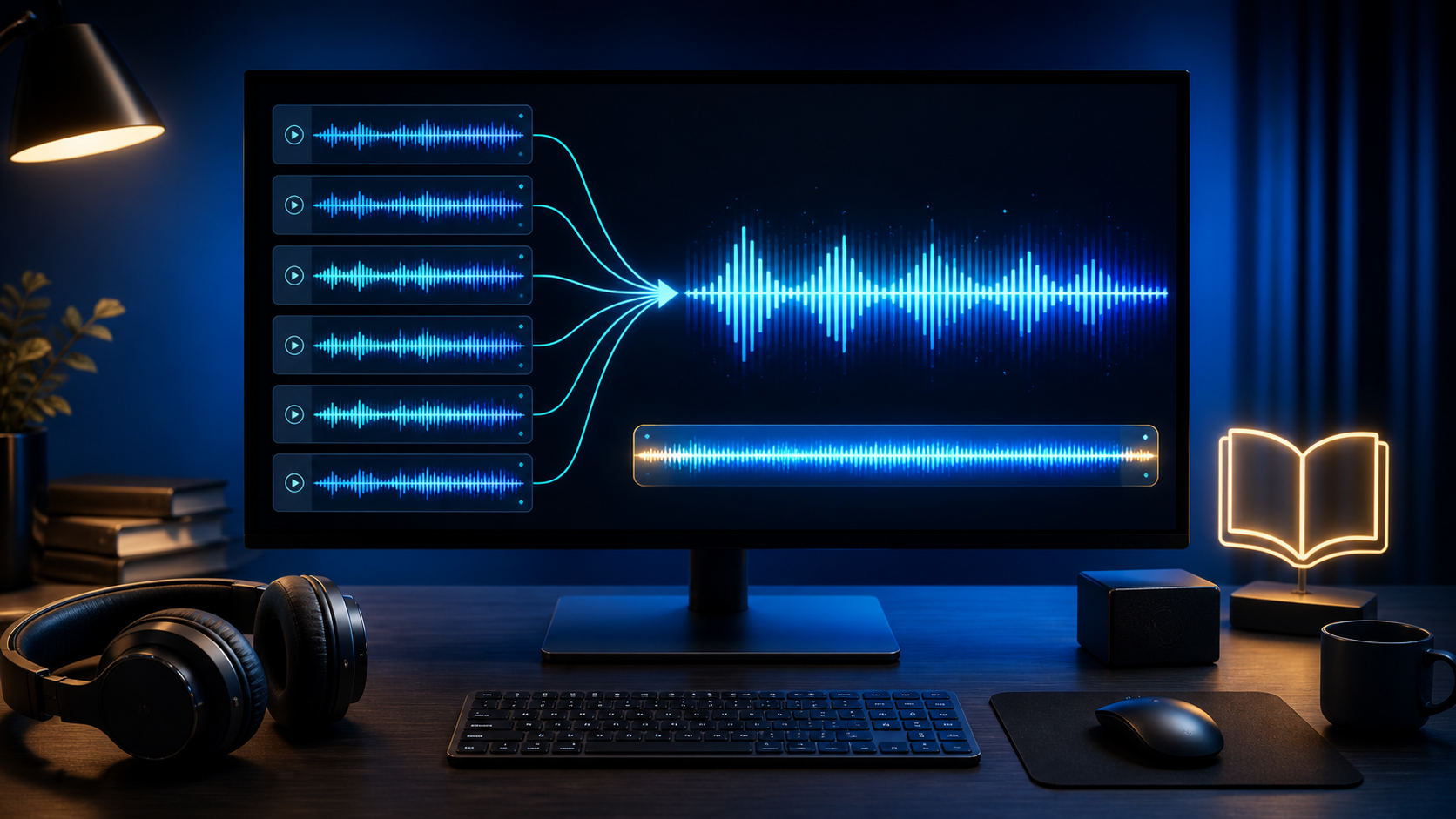
A folder full of short audiobook tracks can be awkward to copy, archive, or play in the right order. The good news is that you do not need to upload a private recording or a purchased audiobook to an online service. You can combine the chapters on your Windows 11 or Windows 10 PC, keep the source files untouched, and export a single MP3 with a cover image and chapter reference sheet.
This guide explains the complete workflow in Free Merge MP3, including file order, lossless joining, precise trimming, loudness, metadata, and CUE chapter markers. It also explains when a “no quality loss” merge is technically possible—and when the audio must be encoded again.
Quick answer
- Put the chapter files in their intended reading order.
- Open Free Merge MP3 and add the files or their folder.
- Drag chapters into the correct order and preview the joins.
- Choose Smart (recommended).
- Select MP3, the desired bitrate, sample rate, and stereo or mono output.
- Add title, author, album, year, genre, comment, and optional cover art.
- Enable Create a CUE chapter sheet if you want a separate chapter index.
- Choose an output file and click Merge audio.
Before you merge: fix chapter order first
File Explorer sorts names alphabetically. That means Chapter 10.mp3 may appear before Chapter 2.mp3. Renaming files with leading zeroes—01, 02, …, 10—makes the folder portable, but you can also reorder clips directly in Free Merge MP3.
After adding the folder, check the timeline from top to bottom. Use drag-and-drop or the move buttons to correct the sequence. Each row shows its duration and technical format. The selected clip also has preview, duplicate, trim, and silence-trim controls. Duplicate is useful when the same introduction or closing message should appear more than once.

Smart Join versus Studio Merge for audiobooks
Smart mode first checks whether every input already matches the requested output container, codec, sample rate, channel layout, and applicable bitrate. It also checks that you have not requested a trim, crossfade, fade, or loudness normalization. If all requirements match, the program can copy compatible audio streams without encoding them again. This is fast and avoids generation loss.
If the chapters do not match—or if you use an effect—Smart mode automatically uses the Studio pipeline. Studio mode decodes the clips, applies the requested edits, and performs one controlled final encode. Lossless Copy is stricter: instead of falling back, it rejects incompatible inputs. For a detailed explanation, read How to Merge MP3 Files Without Losing Quality.
For spoken-word audio, a sensible MP3 target is often 96–128 kbps for mono or 128–192 kbps for stereo, depending on the original quality. Choosing 320 kbps cannot restore information that is missing from a low-bitrate source; it only creates a larger file. When preserving an already compatible audiobook, leave Smart mode enabled and match the original technical settings.
Trim announcements, silence, or mistakes without editing the originals
Double-click a chapter or choose Trim clip. The trim window stores only start and end points in the project. It never overwrites the source file. Use the thin range lines, exact time fields, keyboard nudges, and waveform zoom up to 32× to locate a breath, click, or long silence accurately.
If every chapter has obvious leading or trailing silence, try Trim silence on each selected clip, then preview the edges. Automatic detection is a starting point, not a substitute for listening—quiet narration and room tone can look like silence.
Should audiobook chapters have gaps or crossfades?
Most audiobooks sound best with either a direct join or a short silent gap. A crossfade overlaps the end of one chapter with the beginning of the next, so it can cut into narration. Use a crossfade only for material designed to overlap, such as music or ambience. For speech, a gap of roughly 0.25 to 1 second is usually easier to follow.
If chapters were recorded at noticeably different levels, enable accurate loudness normalization and choose a target LUFS value appropriate for your distribution. Normalization requires Studio processing because the audio must be analyzed and rebuilt. Always listen to several transitions before producing a multi-hour result.
Add audiobook title, author, cover art, and chapters
Open Tags & cover and enter the book title, author or narrator, album or series name, year, genre, and an optional comment. Cover art is supported for MP3, M4A, and FLAC output. Square artwork is the safest choice for players; use an image you own or are allowed to distribute.
Enable Create a CUE chapter sheet to write a separate .cue file beside the merged audio. Free Merge MP3 creates one marker for each input clip and adjusts marker times for trims, gaps, and crossfades. A CUE sheet is not the same thing as chapters embedded inside every player’s proprietary audiobook format, but it is a useful portable index for compatible software and an excellent production reference.
Verify the finished audiobook
- Confirm the output duration is close to the sum of the selected chapter ranges, adjusted for gaps or crossfades.
- Listen at the first join, a middle join, and the final join.
- Check title, author, album, and cover art in a second media player.
- Open the CUE sheet in a text editor and confirm the chapter sequence.
- Keep the original chapter files until you have backed up and tested the merged result.
Frequently asked questions
Can I merge hundreds of audiobook chapters?
A Free Merge MP3 project supports up to 200 input clips. For a larger library, split the book into volumes or parts, then merge those final parts only if their technical properties match.
Will merging delete or alter my chapter files?
No. Timeline edits and trims are non-destructive. The program writes to a separate output path and validates that the output is not one of the input files.
Can I save the job and continue later?
Yes. Save a .fmp3proj project to preserve clip order, trim ranges, output settings, effects, metadata, and cover-art path.
Do I have to upload the audiobook?
No. Processing is local on your Windows PC. Free Merge MP3 does not require an account or an online upload.
Ready to organize your chapters? Download Free Merge MP3 for Windows, keep Smart mode selected, and test a short two-chapter copy before processing the complete book.